

When DeepSeek says an upload failed, do not start by reinstalling the app or converting every document. First, check the live DeepSeek status page, read the exact message shown under the attachment, and test one small, non-sensitive file in a new conversation. Those three checks usually reveal whether the problem is the service, the selected interface, the original file, or an API request.
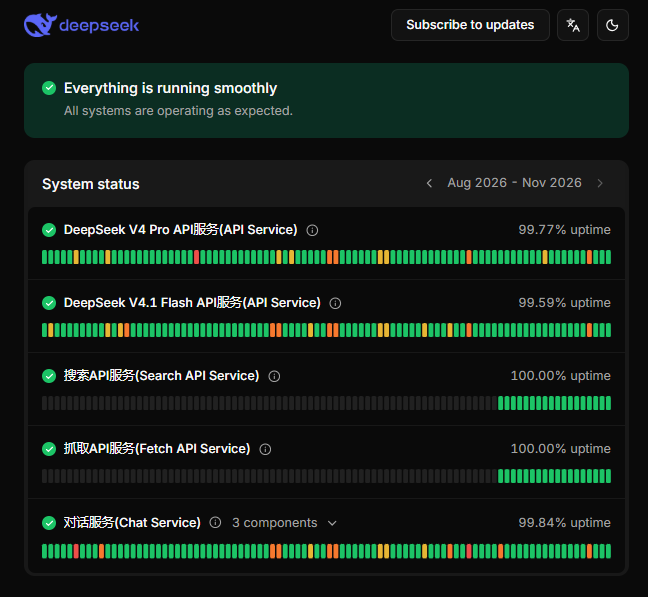
At 2:44 p.m. UTC on November 6, 2026, DeepSeek’s status page reported that all systems were operating normally, including the File Upload Service. That status can change at any time, so open the live page before changing your browser, app, or document.
Published: November 5, 2026.
Fastest diagnostic: Check service status, confirm the attachment control is visible, upload a harmless text-based test file, and compare the result with the original. If the test file works, investigate the original file. If every file fails, investigate the service, account, session, app, browser, or API request.
What does “DeepSeek upload failed” actually mean?
“Upload failed” is not one precisely defined error. Users often apply the phrase to several failures that occur at different stages:
- The attachment button is missing.
- The file is rejected immediately.
- The progress indicator stalls or times out.
- The file arrives, but DeepSeek displays “No text extracted.”
- The interface displays “Parsing failed.”
- One document fails while other files work.
- Every attachment fails in one browser or app.
- An API request returns an HTTP error.
- A third-party client offers an upload button but sends an unsupported request to DeepSeek.
Identifying which symptom you have is more useful than applying a long list of generic browser fixes.
| What you see | What it usually points to | Best first check |
|---|---|---|
| The attachment button is missing | Interface, mode, account rollout, or app-version behavior | Start a new conversation and check whether another current mode or official client visibly offers attachments. |
| The upload fails immediately | Service condition, expired session, rejected file, or malformed API request | Check status, then try a harmless minimal file. |
| The upload stalls | Network interruption, large or complex file, client timeout, or service degradation | Check status and test a much smaller file once. |
| Only one file fails | Corruption, encryption, unusual structure, unsupported content, or missing text layer | Re-export a copy or test only the relevant pages. |
| Every file fails | Service, account, mode, session, browser, app, network, or API configuration | Compare a new conversation and another official client. |
| “No text extracted” | The file may contain no machine-readable text | Check whether text can be selected in the document. |
| “Parsing failed” | DeepSeek could not process the document structure | Re-export a clean copy from the source application. |
| API status 400 or 422 | Request format, endpoint, model, or parameter error | Read the response body and compare the request with current documentation. |
| API status 429, 500, or 503 | Rate limit, server issue, or overload | Check status and use controlled retries rather than changing the file immediately. |
Use this five-minute diagnostic sequence
- Check the live service status. Look specifically at File Upload Service, Chat Service, and the API service you are using.
- Identify the interface. Confirm whether the problem occurs in DeepSeek Web, Android, iPhone, DeepSeek Harness, an official API, or a third-party client.
- Read the exact message. “Upload failed,” “No text extracted,” “Parsing failed,” and an HTTP 422 response do not have the same cause.
- Use a harmless test file. Create a short document containing plain, selectable text and no personal information.
- Compare the result. If the test file works, focus on the original document. If it also fails, continue with account, app, browser, network, or API diagnosis.
Avoid repeatedly uploading the confidential original while diagnosing the problem. A small synthetic file gives you the same technical signal without exposing sensitive information.
1. Check whether DeepSeek is having a service incident
DeepSeek tracks File Upload Service separately from Chat Service and its model APIs. Attachments can therefore fail even when ordinary text chat still works, and an API incident does not necessarily mean the consumer attachment service is unavailable.
Open the official DeepSeek status page and inspect the affected component.
Wait before changing anything when
- The File Upload Service shows an active incident.
- Chat Service is degraded and all unrelated files fail.
- The relevant API service is reporting an outage.
- DeepSeek says it has identified a problem and is applying a fix.
- Your API returns a server error while status shows a related incident.
Do not rapidly retry during an active outage. Repeated attempts can create duplicate requests, trigger rate limits, or make it harder to distinguish a service failure from a local one.
Continue local troubleshooting when
- The official status page reports normal operation.
- Only one document fails.
- The problem occurs in one browser but not the official mobile app.
- The problem appears only in one conversation or mode.
- The API returns 400, 401, 402, or 422.
- A scanned or encrypted document produces a parsing or extraction message.
2. Confirm that the current interface exposes attachments
DeepSeek officially introduced its consumer app with “file upload and text extraction,” so attachment support is a genuine first-party feature. That does not mean every client, account, mode, model, or API endpoint accepts the same files in the same way.
Older troubleshooting pages may tell you to leave DeepThink or Expert mode before attaching a file. That advice came from user reports during earlier 2026 interface versions. For example, a May 2026 GitHub issue reported that uploads were unavailable in DeepThink mode, but the issue was later closed as stale and not planned.
The current iOS version history says Instant, Expert, and Vision modes were unified in September 2026. Web and Android behavior may still differ by version or rollout, so use the controls visible in your own current interface rather than assuming an old mode restriction still applies.

When the attachment button is missing
- Open a new conversation.
- Check whether the current interface shows an attachment or paperclip control.
- If the interface still exposes separate modes, choose one that visibly offers attachments.
- Update the official mobile app if an update is available.
- Compare the official web interface with the official mobile app.
- Do not diagnose the file itself until an attachment control is available.
A missing control is an interface or account problem, not evidence that your PDF is corrupted.
3. Test whether the problem belongs to the file
The cleanest test is to create a short, harmless document containing a few lines of selectable text. Use a format that the current DeepSeek file picker visibly accepts. Do not assume that an extension listed by an old article remains supported for every account or interface.
If the test file succeeds
The service, session, and basic upload route are probably working. Investigate the original file for:
- Password protection or encryption
- A damaged or incomplete download
- A misleading filename extension
- A format that the current picker does not accept
- Scanned pages without a text layer
- Embedded media, forms, macros, annotations, or unusual fonts
- A very long or internally complex document
- A file generated by a faulty scanner or converter
- A filename that exceeds an API limit when using the Files API
Preserve the original, then create a diagnostic copy. Re-export it from the source application, remove encryption when you are authorized to do so, or extract only the pages needed for the task.
If the test file also fails
The issue is less likely to be unique to the original document. Continue with a new conversation, current app version, browser comparison, account reauthentication, network comparison, or API request inspection.
“No text extracted” is different from an upload failure
If the interface displays “No text extracted,” the file may already have reached DeepSeek successfully. The next stage—turning its contents into readable text—produced nothing useful.
Test the document locally:
- Open the file.
- Try to highlight an individual sentence.
- Copy it into a plain-text editor.
- Search for a visible word inside the document.
If those actions fail, the document probably consists of page images rather than machine-readable text. This commonly happens with scanned PDFs, photographs of pages, handwritten notes, and some fax-generated documents.
What to do with an image-only document
- Use an image-understanding option if the current DeepSeek interface visibly provides one.
- Apply OCR to a copy when your goal is to extract written text.
- Upload only the required pages rather than the entire scan.
- Paste the relevant text directly when it is short.
- Review OCR output for names, numbers, tables, and formatting errors.
OCR is appropriate when the missing text layer is the problem. It will not fix a service outage, expired session, unsupported API endpoint, rate limit, or malformed request.
“Parsing failed” usually points to the document structure
A parsing failure means DeepSeek could not process the file in the form it received. That is different from receiving a valid document that simply contains no extractable text.
- Open the file in its original application and confirm that it is readable.
- Save or export a new copy instead of merely renaming the extension.
- Remove password protection when you have permission.
- Export only the relevant pages.
- Flatten complicated annotations or forms in a diagnostic copy.
- Try a simpler format accepted by the current file picker.
- Test the new copy in a new conversation.
Changing report.docx to report.pdf in the filename does not convert the document. Use the original application’s export function so that the internal file structure matches the extension.
How to fix DeepSeek PDF upload problems
PDF failures are common because the same extension can contain very different internal content.
| PDF type | How to recognize it | Best diagnostic step |
|---|---|---|
| Digital text PDF | You can highlight, copy, and search its text | Try a short extracted section or a newly exported copy. |
| Scanned PDF | Each page behaves like one image | Use OCR or an available image-understanding mode. |
| Mixed PDF | Some pages contain text while others are scans | Separate the relevant pages and OCR only the image pages. |
| Password-protected PDF | The viewer requests a password or restricts copying | Create an unprotected copy only when authorized. |
| Malformed PDF | It opens inconsistently or produces errors in other software | Re-export from the source or print to a new PDF. |
| Complex interactive PDF | It contains forms, scripts, layers, embedded media, or extensive annotations | Export a flattened diagnostic copy. |
Uploading and text extraction are separate operations. A PDF can transfer successfully and still produce no usable text. Conversely, a readable PDF can fail before extraction if the session or service rejects the upload.
Fix upload failure in DeepSeek Web
Use browser tests to isolate the problem, not as a ritual list of supposed fixes.
- Open a new conversation. This checks whether the current conversation state is the problem.
- Reload the official DeepSeek page. Confirm that your session is still authenticated.
- Try a harmless minimal file. If it works, return to file-specific diagnosis.
- Test a current mainstream browser. This checks whether the failure is browser-specific.
- Use a private window as a diagnostic comparison. A success there may point to stored session data or an extension.
- Temporarily disable only relevant extensions. Test content blockers, privacy extensions, or download managers one at a time, then restore them.
- Compare another permitted network. This can identify a proxy, filtering, or unstable-connection issue.
- Sign out and back in only after simpler tests. Reauthentication may help an expired session but will not repair a malformed PDF.
Do not clear all browser data as the first step. It can sign you out of many sites and remove useful local state without proving that cache caused the failure.
Fix upload failure on Android or iPhone
- Confirm that you installed the official DeepSeek app.
- Check for an official app update.
- Force-close and reopen the app.
- Start a new conversation and use a harmless test file.
- Confirm that the app can access the photo, file, or storage location you selected.
- Check that the device has enough free storage for temporary operations.
- Compare the same file in DeepSeek Web.
- Compare Wi-Fi with another permitted connection.
- Sign out and back in if the issue appears account- or session-related.
If the same file works on the web but not on the phone, the problem is probably client-specific. If it fails everywhere while a minimal file works, investigate the document itself.
DeepSeek does not publish one universal consumer upload limit
DeepSeek’s official consumer announcement confirms file upload and text extraction, but the public consumer documentation reviewed for this guide does not provide one permanent table covering every supported extension, per-file size, file count, OCR behavior, account, platform, and chat mode.
Use the limits and accepted formats displayed in the current file picker for your own account. Do not copy the API’s 64 MiB image limit into a consumer PDF guide; that number belongs to the developer Files API and does not establish the web or mobile document limit.
DeepSeek API uploads require a different diagnosis
The consumer attachment button and the developer API are separate systems. Current DeepSeek API documentation supports image uploads, but it does not provide a general document-upload equivalent for PDFs, DOCX files, spreadsheets, and arbitrary files across every endpoint.
| API path | What it currently accepts | Important requirement | Common mistake |
|---|---|---|---|
| Files API | JPEG, PNG, GIF, and WebP images | POST /files as multipart/form-data with purpose=user_data | Trying to upload a PDF or generic document |
| Chat Completions | Images by URL, base64, file_data, or an uploaded file_id | Use deepseek-flash and a valid image content block | Passing both file_id and file_data, or using a non-image file |
| Responses API | input_image by URL, base64 data URL, or file_id | Provide either image_url or file_id, not both | Sending a generic document as though it were an image |
| Anthropic-compatible Messages API | Image blocks for deepseek-flash | A file-backed image requires anthropic-beta: files-api-2025-04-14 | Sending a document or container_upload block, which is unsupported |
The Anthropic compatibility documentation explicitly marks document and container_upload content as unsupported. It supports image content with deepseek-flash, while deepseek-v4-pro is not a vision model.
Current Files API limits
These limits apply to the official developer Files API, not automatically to DeepSeek Web or the mobile app.
| Files API item | Documented value |
|---|---|
| Supported formats | JPEG, PNG, GIF, and WebP |
| Maximum uploaded file | 64 MiB |
| Maximum upload duration | 10 minutes |
| Required purpose | user_data |
| Optional expiration | 1 hour to 30 days |
| Permanent storage option | Omit the expiration fields |
| Maximum filename length | 512 bytes |
| Maximum stored files per account | 10,000 |
| Maximum storage per account | 25 GiB |
The Vision documentation separately lists a 48 MiB inline request-body limit, 32 MiB per inline image, and up to 64 MiB for an image referenced through a Files API file_id.
Why a valid-looking file ID may fail
- The file expired.
- The file was deleted.
- The ID was copied incorrectly.
- The request uses the wrong account.
- The endpoint expects a different content-block shape.
- The required Anthropic beta header is missing.
- The model does not support image processing.
- The request supplies both mutually exclusive image fields.
- The uploaded content is not one of the documented image formats.
Retrieve or list the file before resending it. DeepSeek says API files are shared by API keys belonging to the same account, but a file created under another account will not become available merely because its ID has the correct prefix.
What DeepSeek API error codes mean during upload troubleshooting
| Status | Official meaning | What to inspect | Should you retry unchanged? |
|---|---|---|---|
| 400 | Invalid request format | JSON or multipart shape, content block, mutually exclusive fields, endpoint, and headers | No. Correct the request first. |
| 401 | Authentication failed | API key, authorization header, environment variable, and base URL | No. Correct authentication first. |
| 402 | Insufficient balance | Account balance and billing account | No. Resolve billing first. |
| 422 | Invalid parameters | Model ID, field names, purpose, expiration fields, or unsupported content | No. Correct the parameters first. |
| 429 | Rate or concurrency limit | Request pace, concurrent uploads, QPS, and retry guidance | Only after slowing down or waiting. |
| 500 | Server error | DeepSeek status and whether a later bounded retry succeeds | Yes, after a brief wait. |
| 503 | Server overloaded | Service status and current traffic condition | Yes, after a brief wait with backoff. |
Use the official DeepSeek error-code page together with the response body. The status code identifies the broad category; the error message usually identifies the field that must change.
Production applications should use bounded retries with exponential backoff for temporary 500, 503, and suitable 429 responses. Do not repeatedly resend an unchanged 400 or 422 request.
If the failure occurs in DeepSeek Harness
DeepSeek Harness has its own local-first attachment, workspace, plugin, and session systems. A Harness attachment error does not prove that DeepSeek Web or the public File Upload Service is unavailable.
- Confirm that you are running the current Harness preview release.
- Reproduce the problem in a new session.
- Determine whether the failure affects one attachment, one session, or every workspace.
- Check whether the local attachment still exists.
- Review enabled plugins and their file permissions.
- Check the official Harness repository for a matching current issue.
- Do not apply a Harness-specific workaround to the consumer web app.
DeepSeek describes Harness as local-first, with attachment and runtime data stored on the device by default. External models, web tools, MCP services, and plugins can still transmit data to their own providers.
Protect sensitive files while troubleshooting
DeepSeek’s privacy policy says user input may include uploaded files, photos, prompts, feedback, and chat history. Use a synthetic test document whenever possible.
- Remove personal and confidential information from test files.
- Do not post an original client document in a public issue or forum.
- Redact API keys, access tokens, cookies, account IDs, and private URLs.
- Do not send confidential files to random OCR or conversion sites.
- Use an organization-approved service for regulated or contractually protected data.
- Share the file type, approximate size, and behavior instead of the contents when reporting a bug.
- Review the applicable privacy policy for third-party clients and gateways separately.
An upload transport problem, a privacy concern, a malware risk, and an inaccurate model response are different issues. Fixing the upload does not establish that the document is appropriate to submit.
What not to do
- Do not permanently disable antivirus, firewall, or device security.
- Do not install a PC cleaner to fix an upload error.
- Do not use an unofficial upload proxy.
- Do not share your API key in a screenshot or support message.
- Do not rename an extension and assume the file was converted.
- Do not use OCR when the actual problem is an outage or API request error.
- Do not rapidly retry a 429, 500, or 503 response.
- Do not clear all browser data before trying safer, narrower tests.
- Do not assume a community workaround is an official product requirement.
- Do not treat the API’s image limit as the consumer app’s document limit.
When to contact DeepSeek support
Escalate the issue when every harmless test file fails, the problem reproduces in more than one official client, the status page shows no incident, and the current interface visibly supports attachments.
For consumer-product issues, use the in-product feedback channel or the support address shown on DeepSeek’s official website. API documentation lists api-service@deepseek.com for developer-platform questions.
Include these details
- Date, approximate time, and time zone
- Country or region
- DeepSeek Web, Android, iPhone, Harness, or API
- App or browser version
- Operating system
- Selected mode or model
- Exact visible error message
- File type and approximate size
- Whether the file contains selectable text
- Whether it is encrypted or password-protected
- Whether a harmless minimal test file worked
- Steps needed to reproduce the failure
- For APIs: endpoint, HTTP method, model ID, status, and redacted error body
Never include these details
- API keys
- Passwords
- Session cookies
- Private document contents
- Personal identifiers
- Confidential URLs
- Unredacted authorization headers
Frequently asked questions
Why does DeepSeek say upload failed?
The message can indicate a service incident, unavailable attachment control, expired session, file-specific problem, browser or app issue, or invalid API request. Check status, identify the exact interface and message, and test a harmless minimal file before changing the original.
Is DeepSeek down when file uploads fail?
Not necessarily. DeepSeek tracks File Upload Service separately, so check the live status page. If it reports normal operation and only one file fails, the document is a more likely place to investigate.
Why is the DeepSeek upload button missing?
The current interface, app version, account rollout, or selected mode may not expose attachments. Open a new conversation, update the official app, and compare another official client. Do not assume historical DeepThink or Expert restrictions still apply to the current unified interface.
Can DeepSeek upload PDF files?
DeepSeek’s consumer app officially supports file upload and text extraction, but its public consumer documentation does not publish one universal PDF limit or support matrix for every interface. Use the file picker shown for your account and test a small PDF containing selectable text.
Why does DeepSeek say “No text extracted”?
The document may contain no machine-readable text. This is common with scanned PDFs, photographed pages, and handwriting. Check whether you can select and copy text, then use OCR or an available image-understanding feature when appropriate.
What does “Parsing failed” mean?
DeepSeek could not process the file structure. Re-export a clean copy, remove encryption when authorized, extract the needed pages, or flatten complicated forms and annotations before testing again.
What is the DeepSeek file upload limit?
DeepSeek does not publish one universal consumer limit for every file type, client, account, and mode. Its developer Files API has a documented 64 MiB maximum, but that API accepts supported image formats and the limit should not be presented as the consumer PDF limit.
Does the DeepSeek API support file uploads?
Yes, for supported images. The current Files API accepts JPEG, PNG, GIF, and WebP images that can be referenced by file_id. It is not a general-purpose document upload API for arbitrary PDFs, DOCX files, or spreadsheets.
Why is my DeepSeek file ID rejected?
The file may have expired, been deleted, belonged to another account, used an unsupported format, or been referenced with the wrong content-block structure. Anthropic-compatible file images also require the current beta header documented by DeepSeek.
Is it safe to upload confidential documents?
Do not use confidential files for troubleshooting. DeepSeek’s consumer privacy policy says uploaded files can be collected as user input. Use synthetic test content and follow your organization’s data-handling rules before submitting protected information.
Sources checked
- DeepSeek live service status
- Official DeepSeek app announcement
- Official DeepSeek app download page
- DeepSeek iOS version history
- DeepSeek Files API guide
- DeepSeek Vision guide and image limits
- DeepSeek Responses API guide
- DeepSeek Anthropic API compatibility guide
- DeepSeek API error codes
- DeepSeek Privacy Policy
- DeepSeek Harness product page
- DeepSeek Harness Data Processing Statement
- Historical DeepThink attachment report on GitHub