

Published: November 7, 2026.
DeepSeek can analyze a PDF through its consumer web and mobile interfaces by uploading the file and extracting its readable text. It works best with searchable PDFs that contain a real text layer. Scanned pages, charts, complex tables, and image-heavy documents may require OCR or a different workflow.
The DeepSeek API is a separate product. Its current Files API accepts supported image formats, not PDF documents directly. Developers who need PDF analysis must first extract the text, render relevant pages as images, or build a retrieval workflow.
Last verified: November 6, 2026.
Quick answer: Upload a searchable PDF to the official DeepSeek chat, wait for text extraction to finish, and begin by asking DeepSeek to map the document before requesting a summary. For scanned PDFs, run OCR first. Always check important claims, numbers, and quotations against the original file.
Can DeepSeek read PDF files?
Yes, DeepSeek’s consumer chat can work with uploaded PDF files. DeepSeek describes its app feature as file upload and text extraction, which is an important distinction: uploading a PDF does not necessarily mean the model sees every page exactly as a person does.
With a normal digital PDF, DeepSeek can extract text and use it for summarization, question answering, translation, comparison, and structured data extraction. With a scanned or image-only PDF, there may be little or no machine-readable text to extract.
| PDF type | What DeepSeek can usually access | Main risk | Best approach |
|---|---|---|---|
| Searchable text PDF | Selectable text and some document structure | Headings, columns, or page references may be flattened | Upload it, request a document map, and verify key details |
| Scanned or image-only PDF | Little or no extractable text | “No text extracted” or incomplete results | Create a searchable PDF with OCR before uploading |
| Table-heavy PDF | Text from cells, sometimes without reliable row and column relationships | Incorrect totals or mixed columns | Ask about a named table or specific columns and check the original |
| Chart- or image-heavy PDF | Captions and surrounding text may be available | The visual meaning may not survive text extraction | Provide selected pages as images through an image-capable workflow |
| Password-protected or damaged PDF | The parser may be unable to open the content | Parsing or upload failure | Remove permitted protection or export a clean copy |
A successful upload also does not prove that every page was extracted correctly. Treat uploading, text extraction, and model analysis as three separate stages that can each succeed or fail independently.
How to upload and analyze a PDF with DeepSeek
- Open the official DeepSeek service. Use the official web chat or mobile app rather than an unrelated site that happens to use a DeepSeek model.
- Start a new conversation. A fresh chat reduces the chance that instructions or files from an earlier task will affect the result.
- Select the attachment or upload control. Interface labels can differ between the web and mobile versions. Choose the PDF you want to analyze.

- Wait for processing to finish. Do not send the analysis request while the attachment is still uploading or displaying an error.
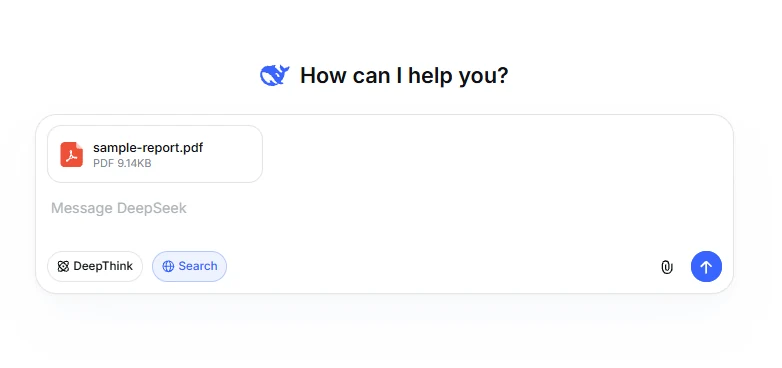
- Ask for an extraction check first. Have DeepSeek identify the title, date, major sections, and any unreadable content before requesting conclusions.
- Ask one focused question at a time. Narrow requests are easier to verify than a single instruction to “analyze everything.”
- Check the answer against the original PDF. Verify important numbers, dates, names, definitions, quotations, and obligations manually.
DeepSeek does not publish one universal consumer-facing table covering every PDF size limit, file-count limit, client, region, and account type. Follow the current limit displayed in your own upload interface instead of applying API limits or numbers copied from an older tutorial.
Use this as your first prompt after uploading
Use only the uploaded PDF for this response.

Before summarizing it, identify:
1. The document title, date, author, or issuing organization.
2. The main headings and sections.
3. Any pages, tables, images, or passages that appear missing or unreadable.
4. Whether the document appears complete.

Do not fill gaps with outside knowledge. If page numbers are unavailable after extraction, cite section headings and short identifying phrases instead.
This inspection step can reveal an incomplete extraction before you rely on a polished but potentially incomplete summary.
Copy-and-paste prompts for DeepSeek PDF analysis
The best prompt depends on the task. A useful PDF prompt defines the source, requested output, evidence standard, and behavior when information is missing.
Create a source-grounded summary
Summarize the uploaded PDF using only information stated in the document.

Organize the answer into:
- Purpose of the document
- Main findings or arguments
- Important supporting evidence
- Decisions, recommendations, or action items
- Limitations or unresolved questions

For every major claim, provide the relevant page number when available. If page numbers were not preserved, provide the section heading and a short identifying phrase.

Label anything that is an inference as “Inference.” Say “Not stated in the PDF” when the source does not provide an answer.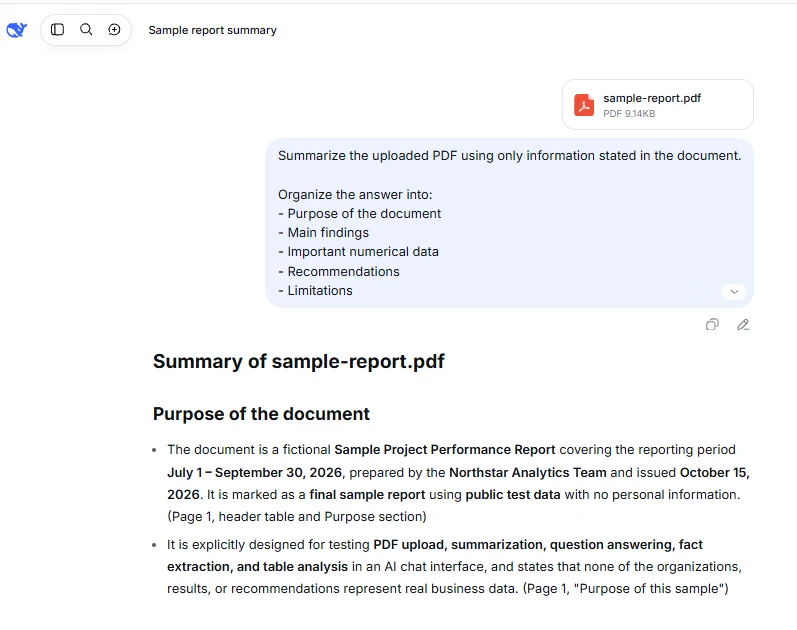
Extract facts into a table
Extract the requested facts from the uploaded PDF into a table with these columns:

1. Topic
2. Exact fact or requirement
3. Date, amount, percentage, or unit
4. Source page or section
5. Short supporting quotation
6. Confidence: clear, ambiguous, or unreadable

Do not calculate, normalize, or infer missing values unless I ask you to. Preserve the units and wording used in the document.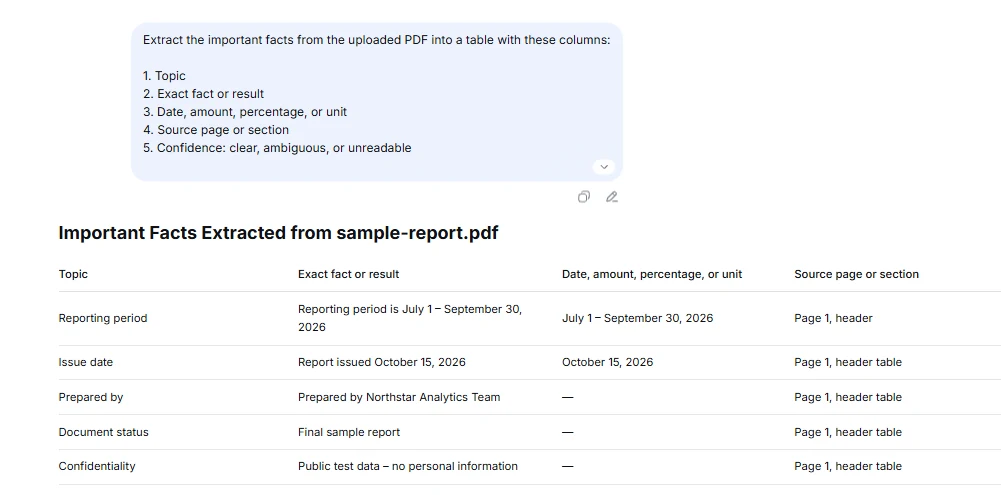
Compare two PDF files
Compare the two uploaded PDFs.

Refer to each document by its filename. Create a table showing:
- Topics covered by both documents
- Claims or requirements that agree
- Claims or requirements that conflict
- Information found in only one document
- Differences in dates, definitions, totals, or scope
- The source location for each finding

Do not treat silence in one document as disagreement. Mark it as “Not addressed.”
Turn a PDF into study notes
Create study notes from the uploaded PDF.

Include:
- A short overview
- Key terms with document-based definitions
- Section-by-section notes
- Important examples
- Formulas, dates, or names that should be memorized
- Ten review questions
- An answer key based only on the PDF

Separate information stated directly in the document from explanations you add for clarity. Do not invent examples that could be mistaken for source content.
Audit a previous DeepSeek answer
Audit your previous answer against the uploaded PDF.

For each material statement in the answer, label it as:
- Supported directly
- Reasonable inference
- Unsupported
- Contradicted
- Unable to verify

Provide the source page or section for supported claims. Correct unsupported or contradicted statements. Do not defend the previous answer when the PDF does not support it.
How to summarize a long PDF without losing important sections
A very long PDF should usually be processed in stages. Asking for one immediate summary can hide extraction gaps, skipped appendices, and misunderstood tables.
- Map the document. Request the title, table of contents, section headings, appendices, and visible page range.
- Check completeness. Compare DeepSeek’s map with the actual document and identify missing sections.
- Process one section at a time. Ask for a summary and evidence from a named chapter, heading, or page range.
- Maintain a confirmed-facts table. Record verified dates, numbers, definitions, and action items as you progress.
- Request a final synthesis. Tell DeepSeek to use only the previously confirmed section summaries and facts.
- Split the PDF when necessary. Divide it by chapter or logical section if extraction is incomplete or the file exceeds the current interface limit.
DeepSeek announced a one-million-token context standard with its V4 generation, but a model’s context window is not the same as a consumer upload limit. File size, parser behavior, document layout, chat history, system instructions, and output length can all reduce how much usable content reaches the model.
For that reason, do not assume that a large PDF was processed in full simply because its estimated text length fits within the model’s advertised context.
How to verify DeepSeek’s answers about a PDF
A prompt that says “use only the PDF” improves focus, but it cannot guarantee accuracy. Verification is especially important for contracts, financial reports, medical documents, academic sources, policies, and compliance material.
- Request source locations. Ask for a page number, section heading, table name, or short identifying quotation beside each important claim.
- Check the surrounding context. A sentence may be accurate but refer to a different product, year, population, or exception.
- Verify units and footnotes. Confirm whether a figure is monthly or annual, estimated or actual, dollars or thousands of dollars, and before or after adjustment.
- Separate statements from inferences. Require labels such as “Stated,” “Inference,” “Missing,” and “Unreadable.”
- Check document versions. Confirm that DeepSeek analyzed the correct draft, revision date, and filename.
- Recalculate high-impact totals. Do not rely on an extracted total when table structure or formulas may have been lost.
- Use qualified review when needed. AI output should not replace professional legal, medical, financial, safety, or compliance review.
Page references are helpful only when the extraction process preserves them accurately. When it does not, ask for section headings and short, unique phrases that you can search for inside the original PDF.
How to fix DeepSeek PDF upload and extraction errors
| Problem | Likely cause | What to do |
|---|---|---|
| No text extracted | The PDF may contain scanned page images instead of selectable text | Run OCR, confirm that text can be selected, and upload the searchable version |
| Parsing failed | The file may be damaged, encrypted, unusually encoded, or too complex for the parser | Open it locally, remove permitted protection, and export a new PDF copy |
| Unsupported file format | The file extension or actual file content is not accepted by the current interface | Convert the source to a standard PDF or another format listed in your upload interface |
| File exceeds the current limit | The PDF is larger than the limit applied to your account or client | Compress it or divide it into logical sections rather than deleting random pages |
| Upload failed or server busy | A connection, browser, account, or service issue interrupted the upload | Retry once, test another network or browser, and check the official DeepSeek status page |
| The answer ignores later chapters | The extraction may be incomplete, or too much content was requested at once | Ask for a section map, then upload or analyze the missing chapters separately |
| Table values are mixed up | Rows, columns, headers, or footnotes may have flattened during extraction | Ask about named columns and rows, or provide the relevant page through an image workflow |
Before repeatedly changing the file, check the official DeepSeek service status. File Upload Service is listed separately, which can help distinguish a service interruption from a problem with one document.
Can DeepSeek read scanned PDFs, tables, and charts?
Scanned PDFs
A scanned PDF is usually a collection of page images. If you cannot select and copy a sentence from the PDF in a normal viewer, the document probably lacks a usable text layer.
Run the file through a trusted OCR tool, then check the resulting text before uploading it. OCR frequently misreads names, decimal points, dates, page headers, handwritten notes, and characters in low-quality scans.
Tables
Text extraction can preserve the words in a table while losing the relationship between cells. Instead of asking DeepSeek to “analyze all tables,” identify the table by title and specify the exact columns, rows, period, or metric you need.
For financial and statistical tables, check column headers, units, subtotals, footnotes, negative-value formatting, and whether values are rounded.
Charts and visual layouts
A text-extraction workflow may capture a chart title and labels without preserving the visual relationship among bars, lines, legends, and axes. If the visual itself matters, render the relevant PDF page as a clear PNG or JPEG and use an image-capable DeepSeek workflow.
Developers can use the image capabilities documented in DeepSeek’s Vision guide. The current image-capable API model can analyze screenshots and charts, but visual results still require human verification.
Is it safe to upload a PDF to DeepSeek?
Do not assume that a convenient upload button makes a document appropriate to share. Review the document’s sensitivity, your organization’s policies, and DeepSeek’s current legal terms before uploading it.
DeepSeek’s current privacy policy states that user inputs can include uploaded files, photos, prompts, and chat history. It also states that personal data may be used to provide, develop, improve, and train its technology.
The policy says the services are not designed or intended to process sensitive personal data and advises users not to provide it. It also states that collected personal data is directly processed and stored in the People’s Republic of China.
Retention is not described as one universal number for every upload. The policy states that retention depends on purpose, sensitivity, legal requirements, and other factors, and that input data used to provide the service may be kept while the account exists. It also lists a possible right to opt out of using personal data for model training or technology optimization, although available rights and controls can depend on location and account conditions.
Use this privacy checklist before uploading
- Confirm that you have permission to share the document.
- Remove names, account numbers, addresses, signatures, medical details, and other unnecessary identifiers.
- Upload only the pages or sections needed for the task.
- Do not upload client data, trade secrets, unpublished research, employee files, regulated records, or privileged legal material without formal approval.
- Review available training and data controls in your account settings.
- Delete unneeded conversations or files after the task, while recognizing that interface deletion may not override every legal or policy-based retention requirement.
- Read the current DeepSeek Terms of Use and privacy policy rather than relying on an old summary.
A third-party PDF tool powered by a DeepSeek model is not the same as the official DeepSeek service. The third party controls its own upload process, storage, logging, pricing, security, and privacy practices.
Does the DeepSeek API accept PDF files directly?
No direct PDF-document input is documented in the current DeepSeek API. The current Files API uploads images for reuse through a file ID and lists JPEG, PNG, GIF, and WebP as supported formats.
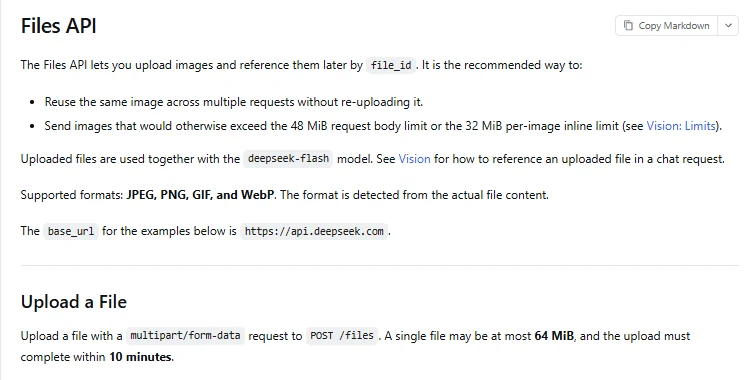
The 64 MiB maximum documented for a Files API upload applies to an API image file. It is not a consumer PDF upload limit and should not be presented as one.
DeepSeek’s Responses API documentation also states that generic file inputs are not supported. Image inputs are available with the image-capable Flash model, while developers must preprocess PDF documents themselves.
| DeepSeek surface | Direct PDF workflow | Recommended method |
|---|---|---|
| Consumer web or mobile chat | PDF attachment with text extraction | Upload a searchable PDF and verify the extracted result |
| API text workflow | No documented direct PDF input | Extract text, divide it into traceable chunks, and send the relevant text |
| API vision workflow | No PDF file input, but supported page images can be analyzed | Render selected pages as PNG or JPEG and send them to the image-capable model |
| Large document collection | No single-upload shortcut for reliable retrieval | Build a retrieval-augmented generation workflow with document IDs and page metadata |
Three practical developer approaches
- Extract text first: Use a PDF parser, retain page and section metadata, split the text into logical chunks, and send only relevant chunks to DeepSeek.
- Render pages as images: Use this when meaning depends on charts, diagrams, forms, or spatial layout. Send only the pages needed for the current question.
- Build a RAG pipeline: Index document chunks, retrieve the most relevant passages for each query, and require citations back to the original page or chunk ID.
For production use, store the original filename, revision, page number, extraction method, and chunk ID with every passage. That metadata makes it possible to trace an answer back to its source instead of treating generated text as evidence.
Looking for an official DeepSeek research PDF?
Some searches for “DeepSeek PDF” refer to technical reports rather than document analysis. Use DeepSeek’s official model announcements and their linked research repositories instead of downloading reports from an unknown mirror.
For example, the official DeepSeek V4 announcement links to its technical report and open model resources. Check the model name and report version before citing it in academic or technical work.
Final DeepSeek PDF checklist
- Use the official DeepSeek service.
- Confirm that the PDF contains selectable text.
- Remove confidential or unnecessary information.
- Ask for a document map before requesting conclusions.
- Process long documents by section rather than with one oversized prompt.
- Require page, heading, table, or quotation evidence.
- Label direct statements, inferences, missing information, and unreadable content separately.
- Verify important numbers, dates, names, and obligations against the original.
- Use OCR for scans and image input for visually important pages.
- Do not confuse consumer PDF uploads with the image-only Files API.
DeepSeek is most useful as an extraction and analysis assistant, not as the final authority on what a PDF contains. A reliable workflow combines focused prompts with direct checking of the original document.
Official sources checked
- Introducing DeepSeek App — consumer file upload and text extraction.
- DeepSeek V4 announcement — current context and official product modes.
- DeepSeek Files API — supported API image formats, storage behavior, and upload limits.
- DeepSeek Vision guide — supported image inputs and visual-analysis workflow.
- DeepSeek Responses API guide — current restrictions on file inputs.
- DeepSeek Privacy Policy — uploaded files, data use, retention, storage, and privacy rights.
- DeepSeek Terms of Use — responsibilities, accuracy limitations, and sensitive uses.
- DeepSeek Status — current chat and file-upload service availability.