
Published: November 5, 2026
Current status: DeepSeek’s official status page reported “Everything is running smoothly” and “All systems are operating as expected” when checked on November 6, 2026, at 9:21 a.m. Eastern Time (14:21 UTC). The page showed the listed Chat, file upload, search, Search API, Fetch API, DeepSeek V4 Pro API, and DeepSeek V4.1 Flash API components operating normally.
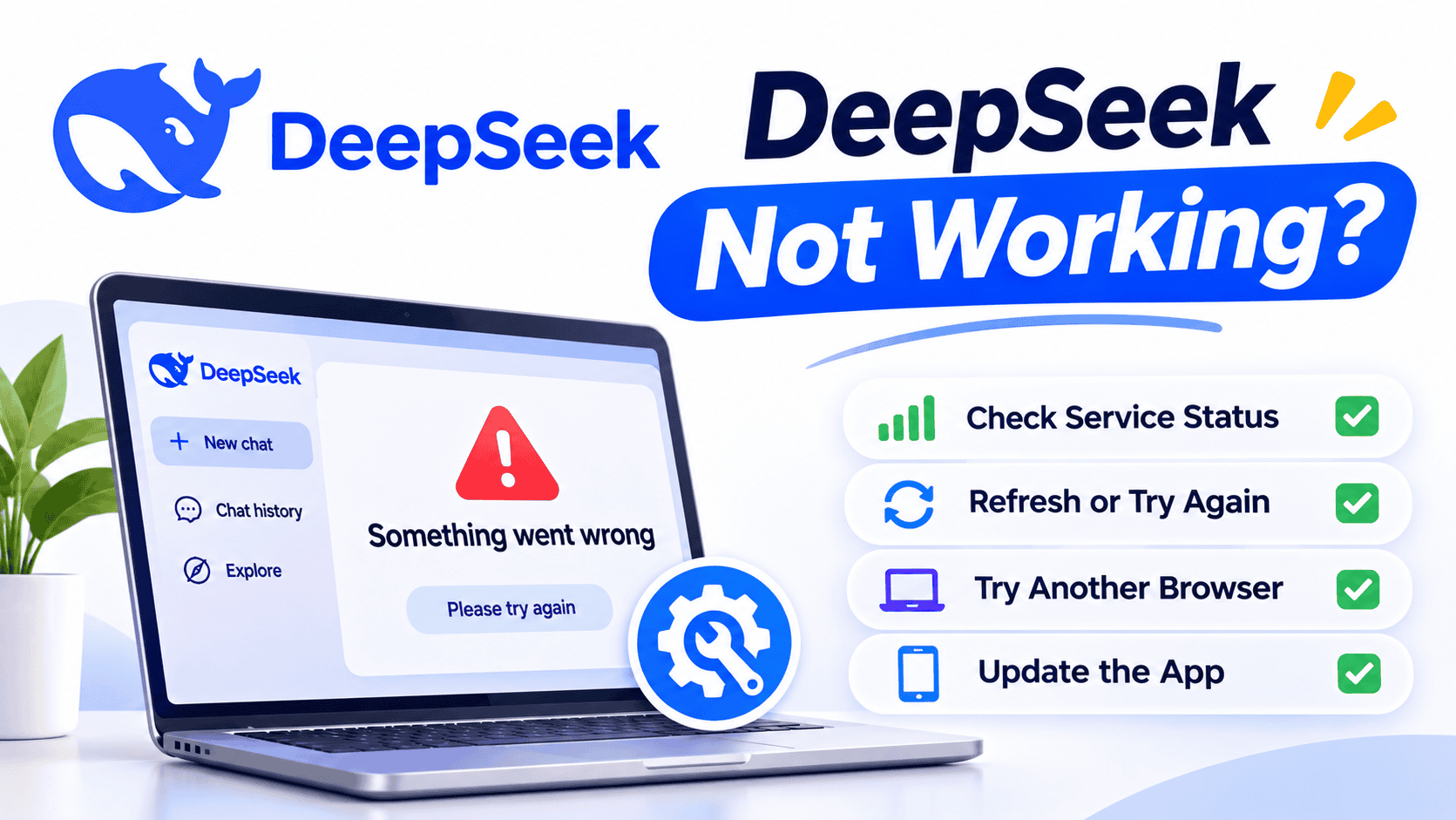
If DeepSeek is not working for you, that does not automatically mean the entire service is down. A new incident may not have been posted yet, or the problem may affect only one account, conversation, device, browser, network, feature, API model, or third-party integration.
Start by preserving any unsent prompt, recording the exact error message, and identifying which DeepSeek surface is failing. Then follow the matching section below instead of clearing data, reinstalling the app, or repeatedly retrying without knowing the cause.
Quick diagnosis: why DeepSeek may not be working
| Symptom | First place to check | Safe first action |
|---|---|---|
| The official status page shows an incident | The affected Chat, API, Search, Fetch, or file-upload component | Save your work, reduce retries, and follow the official incident updates. |
| “The server is busy” or the reply never starts | Chat status and the specific feature you are using | Save the prompt, pause, and make one controlled retry. Do not refresh or resend continuously. |
| Blank page or endless loading | Browser session, cookies, extensions, and network | Open the official site in a private window, then test another current browser. |
| Login loop or verification problem | Account method and the official Help Center | Use the same sign-in method as before and record the exact account message. |
| Android or iPhone app crashes | App update, device storage, and operating system | Update the official app, close and reopen it, then restart the device. |
| Only one conversation fails | That conversation rather than the whole service | Save your text and try a short prompt in a new chat. |
| Search or file upload fails while normal chat works | Search Service or File Upload Service status | Check the component status and test the feature with a smaller, non-sensitive input. |
| The API returns an HTTP error | The exact status code and response body | Use DeepSeek’s official error table before deciding whether to fix the request or retry. |
| DeepSeek works directly but fails in another app | The third-party provider, gateway, extension, or model route | Check that provider’s status, credentials, balance, base URL, and model alias. |
Start with this five-minute troubleshooting checklist
- Save your work. Copy any long unsent prompt or draft into a local document before refreshing, signing out, or changing app data.
- Record the exact error. Note the wording, time, timezone, device, browser or app version, and feature you were using.
- Check the official status page. Look at the specific component rather than relying only on a general “up” or “down” label.
- Identify the affected surface. Decide whether the problem involves Web Chat, Android, iPhone, login, Search, file upload, the API, a third-party app, or a local model.
- Run one comparison test. Try a private browser window, another device, or another authorized network without changing several variables at once.
- Use the symptom-specific section below. A login error and an API
429require different actions. - Stop when the evidence points to a service incident. Local cache changes cannot repair a confirmed server-side outage.
Is DeepSeek down, or is the problem local?
The official DeepSeek status page is the best first source because it tracks separate services. Chat can be degraded while an API model remains available, and file upload or search can fail while ordinary conversation still works.
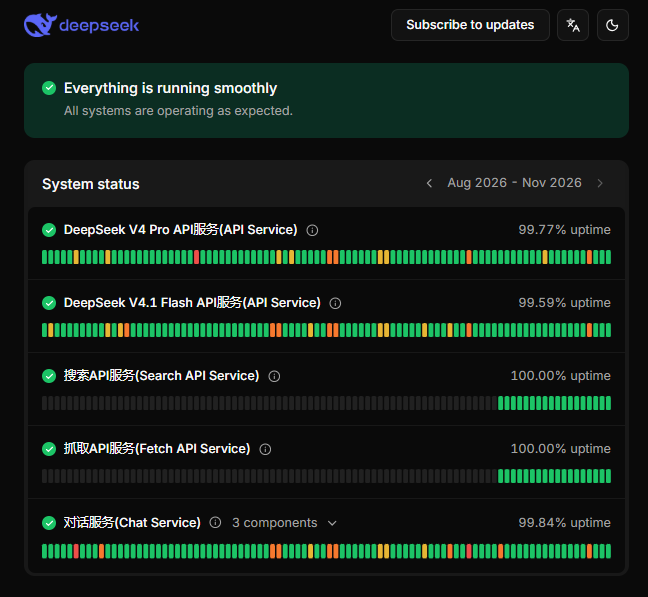
A green status page is useful evidence, but it is not proof that every request works in every region. A problem may be newly developing, limited to a specific route, tied to one account, or caused by a browser, device, network, VPN, corporate filter, or third-party provider.
Use these comparisons to narrow the cause:
- Fails on one browser but works in another: the browser profile, cookies, an extension, or stored site data becomes more likely.
- Fails on Wi-Fi but works on cellular data: investigate DNS, proxy, firewall, VPN, filtering, or routing on the first network.
- Fails for one account on several devices: investigate the account, login method, or an account-specific restriction.
- Fails on several devices and independent networks: a service-side, account-side, or regional issue becomes more plausible.
- Official DeepSeek works but another app fails: investigate the external app, provider, gateway, model mapping, or credentials.
Independent outage monitors can provide additional reachability checks or user reports, but they should not replace the official component-level status page. A monitor may prove that a domain answered from one location without proving that login, generation, search, uploads, or your account is functioning.
Fix “The server is busy,” no response, or stuck generation
A “server is busy” message usually points toward temporary capacity pressure or a service-side problem, but the message alone does not prove a global outage, account ban, geographic block, or daily limit.
- Copy your prompt so it is not lost.
- Check the Chat Service and any feature-specific component on the official status page.
- Wait before making one controlled retry. Rapid repeated retries can create duplicate requests and make it harder to tell whether conditions have changed.
- If one conversation repeatedly fails, test a short, non-sensitive prompt in a new chat.
- If ordinary chat works but Search or file analysis fails, check those components separately.
- If the response stops midway, preserve the partial output before trying again.
Do not clear app storage or reinstall the app while an official incident is open. Those actions cannot restore unavailable server capacity and may sign you out or remove local settings.
A content refusal is also different from a technical failure. If DeepSeek returns a complete message declining a request, restarting the app or changing networks is unlikely to change the underlying policy response.
Fix the DeepSeek website when it is blank, slow, or stuck loading
Use the official DeepSeek website and change one variable at a time. The goal is to identify whether the failure belongs to the service, your signed-in session, your browser profile, or your network.
- Confirm that other websites load. If nothing loads reliably, fix the broader connection first.
- Refresh once. Save any unsent prompt before doing so.
- Open DeepSeek in a private or incognito window. If it works there, the normal browser profile may have stale site data or a conflicting extension.
- Try another current browser. This comparison helps isolate a profile-specific problem; it is not a guaranteed fix.
- Temporarily disable one relevant extension. Script blockers, aggressive privacy tools, VPN extensions, and content filters can interfere with interactive sites. Re-enable extensions one at a time.
- Check cookies and scripts. Blocking required site storage or scripts can break login and application loading.
- Clear only DeepSeek site data if needed. This is safer than deleting all browser history and cookies, but it will usually sign you out.
- Test another trusted network. Comparing Wi-Fi with cellular data can reveal a DNS, proxy, firewall, or routing issue.
Google documents how to manage cookies and site data in Chrome, while Mozilla provides instructions for clearing data for a specific website in Firefox. Use browser-vendor instructions rather than an unofficial “repair” extension.
Do not permanently disable antivirus protection, firewalls, browser security, or organizational filtering. On a work or school network, ask the administrator to investigate instead of bypassing its controls.
Fix the DeepSeek mobile app
Install or update only the official DeepSeek Android app from Google Play or the official DeepSeek app from Apple’s App Store. Avoid modified APKs, unofficial clients, “status fixer” apps, and browser extensions that request your account credentials.
Android troubleshooting
- Check the official status page before changing the app.
- Update DeepSeek through Google Play.
- Force-close the app and reopen it.
- Restart the phone.
- Confirm that the device has adequate free storage.
- Compare Wi-Fi with cellular data.
- Clear the app’s cache only after the safer checks above.
- Use “clear storage” or “clear data” only as a later step because it can reset local app information and sign you out.
- Reinstall only after confirming that important conversations are available in your account and unsent content has been saved elsewhere.
Google’s official guide to fixing an installed Android app covers restarting, updating, and clearing cache or data. Menu names can differ by phone manufacturer and Android version.
iPhone and iPad troubleshooting
- Check DeepSeek’s status page.
- Update the official app through the App Store.
- Close the app and reopen it.
- Restart the iPhone or iPad.
- Check available storage under the device’s storage settings.
- Compare Wi-Fi with cellular data when available.
- Consider offloading the app before deleting it if storage or the installation appears to be the issue.
- Delete and reinstall only after saving unsent work and confirming that important conversations are synced.
Apple explains that offloading an app frees the space used by the app while keeping its documents and data. Deleting an app is a more destructive step and should not be the first response to a confirmed DeepSeek outage.
Fix DeepSeek login and account problems
Login failures are not all password problems. DeepSeek’s official Help Center maintains separate topics for verification codes, third-party sign-in, unsupported email domains, device-environment messages, changed phone numbers, password changes, and temporary account suspensions.
Login loop or failed sign-in
- Use the official DeepSeek website or mobile app.
- Choose the same sign-in method used when the account was created.
- Test the account in a private browser window before deleting app data.
- Confirm that cookies and required scripts are permitted for the official site.
- If the account fails across several devices while another account works, treat the problem as account-specific and contact DeepSeek.
Verification code not received
- Confirm that the email address or phone number was entered correctly.
- Check spam, junk, filtered messages, and blocked senders.
- Wait before requesting another code instead of creating a rapid sequence of requests.
- Do not share the code with anyone, including someone claiming to be support.
- Use the current Help Center instructions if the original phone number is no longer available.
“Current device environment error”
Treat this as an environment or risk-control message rather than proof that the whole service is down. Open the official site or app, record the exact wording, and compare one trusted device or network at a time. If permitted, test without a VPN or proxy. Do not bypass workplace, school, regional, or legal restrictions.
Unsupported email domain or temporary suspension
Follow the dedicated official Help Center entry for the exact message. Do not create several accounts to bypass an account restriction, repeatedly attempt registration, or use an unofficial login service. DeepSeek’s terms provide a product-interface “Contact Us” route and a consumer contact address for account and service feedback.
Fix Search, file upload, and conversation-history problems
These features can fail independently from normal chat. Check Search Service and File Upload Service on the official status page before changing browser or app data.
DeepSeek Search is not working
- Confirm that Search Service is operational.
- Make sure the search-enabled feature is selected and available in the interface you are using.
- Test a new chat with a simple current-information query.
- If ordinary chat works but search repeatedly fails, report it as a feature-specific problem rather than a complete DeepSeek outage.
File or image upload fails
- Check File Upload Service status.
- Use the file requirements displayed in the current consumer interface rather than assuming the API limits are identical.
- Test a smaller, non-sensitive file in a supported format.
- Remove unusual characters from the filename when practical.
- Try another authorized network if uploads alone fail on a work, school, VPN, or filtered connection.
- Do not upload confidential data repeatedly while diagnosing the problem.
One conversation will not load
If a new chat works while one older conversation remains stuck, the evidence points more toward that conversation or its stored state than a total outage. Save any accessible content, test a new thread, and avoid clearing local data until you know whether important history is synced to the account.
If conversation history is missing across devices, confirm that you signed in with the same account and the same authentication method. Clearing browser data or reinstalling the app will not restore history that is unavailable on the server.
DeepSeek API not working: use the HTTP error code
Do not troubleshoot an API error like a browser problem. Start with the exact HTTP status and sanitized response body, then use DeepSeek’s current official API error reference.
| HTTP status | Official meaning | What to do |
|---|---|---|
400 | Invalid request-body format | Correct the JSON or request structure using the returned error details. Do not retry the same body unchanged. |
401 | Authentication failed | Check the API key, Bearer authorization, environment variable, and account that owns the key. |
402 | Insufficient balance | Check the platform balance and billing account. Repeated retries will not fix a balance problem. |
422 | Invalid parameters | Correct the named parameter, model option, or request field before retrying. |
429 | Rate or concurrency limit reached | Reduce in-flight requests, queue work, pace traffic, and use bounded backoff. |
500 | DeepSeek server error | Check status, wait briefly, and make a limited retry. Escalate if a minimal valid request keeps failing. |
503 | Server overloaded | Pause and retry a limited number of times. Do not create a retry storm. |
Before contacting API support, record:
- Request date, time, and timezone
- Base URL and endpoint
- HTTP method
- Exact model ID
- HTTP status
- Sanitized response body
- Streaming or non-streaming mode
- SDK and version
- Whether a recent deployment changed the request
- Whether the same minimal request works from another authorized environment
Never include the full API key, Authorization header, private prompt, proprietary file, session cookie, or customer data in a public post or support screenshot.
Why the DeepSeek API returns empty lines
DeepSeek’s rate-limit documentation explains that a request may remain connected while waiting for inference. A non-streaming request can receive empty lines, while a streaming request can receive SSE comments such as : keep-alive. These are connection keep-alives, not the final model response.
If you parse HTTP responses directly, make sure the client tolerates those keep-alive records. The same documentation states that the server closes the connection if inference has not started after 10 minutes.
Search and Fetch API errors
DeepSeek’s Search and Fetch documentation gives separate retry guidance. For 408, 429, or 5xx responses, wait and retry. For 402, resolve the balance problem. Do not retry other 4xx responses without changing the request.
Use bounded retries
- Retry only errors that may be temporary.
- Use a limited retry count.
- Increase the delay between attempts and add jitter when appropriate.
- Respect a documented retry header when one is returned.
- Avoid repeating operations that can create duplicate external side effects.
- Log the sanitized error and request identifier when available.
Authentication, balance, malformed-request, and invalid-parameter errors require a correction. Retrying them unchanged wastes time and can conceal the real problem.
DeepSeek works directly but not in another app
If DeepSeek works through its official interface but fails in a coding assistant, chatbot, gateway, or model marketplace, the failure may belong to that third party.
- Check the third party’s own status page.
- Confirm which company is billing the request.
- Verify the API key and whether it belongs to the correct provider.
- Check the base URL and API compatibility mode.
- Verify the exact model alias or routing name.
- Check the provider’s balance, limits, and regional availability.
- Update the application, extension, SDK, or gateway.
- Review logs for a provider-specific error rather than assuming DeepSeek is down.
A third-party model alias can remain unavailable after the official DeepSeek endpoint recovers, or it can fail while the official service is healthy. Contact the company that operates the failing route.
A local DeepSeek model is a different troubleshooting problem
DeepSeek’s hosted status page does not diagnose a model running through Ollama, LM Studio, vLLM, another local server, or a community package. For local use, check:
- Whether the model download completed successfully
- Available storage, system memory, and GPU memory
- The exact model or quantization supported by the runtime
- The model path and filename
- The local server process and listening port
- Runtime logs and out-of-memory errors
- Context-length and parameter compatibility
- Whether another application is already using the required port or hardware
Contact the local runtime or package maintainer when the official hosted service works but the local deployment does not.
VPN, proxy, DNS, firewall, and regional connection issues
If DeepSeek works on one authorized network but not another, the difference may involve DNS, a firewall, a proxy, a VPN, an ISP route, corporate filtering, school filtering, or regional network routing.
- Compare the exact error on Wi-Fi and cellular data.
- If permitted, test with the VPN or proxy disabled.
- Check whether the browser, app, and system are using different proxy settings.
- Ask a workplace or school administrator whether the required official domains are filtered.
- Do not permanently disable security tools to make the service work.
A network comparison does not by itself prove intentional blocking, censorship, an account ban, or a DeepSeek-wide outage. Use cautious conclusions and comply with local law and organizational policy.
When to stop troubleshooting and contact support
Stop repeating local fixes and escalate when:
- An official incident remains open.
- The same problem occurs across multiple devices and independent networks.
- An account restriction, login error, or verification problem persists.
- A feature repeatedly fails after the current supported checks.
- A minimal valid API request repeatedly returns a server error.
- Your balance or billing information appears incorrect.
- An API key, password, verification code, or session may have been exposed.
- A third-party app fails while the official DeepSeek endpoint works.
For consumer chat and account support, use the “Contact Us” option in the signed-in product interface when available or email service@deepseek.com. DeepSeek lists that contact route in its current consumer terms.
For the Open Platform and API, DeepSeek lists api-service@deepseek.com in its official API documentation.
What to include in a useful support report
- Exact date, time, and timezone
- Affected product, feature, or API endpoint
- Device and operating system
- App or browser version
- Exact error message
- A redacted screenshot
- Network type
- Whether another device or network works
- What the official status page showed
- Steps already attempted
- Sanitized API details when relevant
Remove email addresses, phone numbers, account identifiers, verification codes, API keys, cookies, authorization headers, private prompts, confidential files, customer data, and internal URLs before sharing screenshots or logs.
Frequently asked questions
How can I tell whether DeepSeek is down?
Check the official DeepSeek status page and look at the specific component you are using. Then compare another device, browser, or authorized network. A single failed browser session does not prove a global outage.
What should I do when DeepSeek says “The server is busy”?
Save your prompt, check Chat Service status, pause, and make one controlled retry. Avoid rapid resubmission. If an incident is confirmed, wait for the official resolution rather than clearing local data.
Should I clear the DeepSeek cache or reinstall the app?
Use those as later steps, not the first response. Try status, private browsing, an app update, a restart, and another authorized network first. Clearing storage or reinstalling may sign you out or remove local information, and it cannot fix a server outage.
Why does DeepSeek work on mobile data but not Wi-Fi?
That comparison points toward the Wi-Fi network, DNS, firewall, proxy, VPN, filtering, or routing. It does not prove a broad DeepSeek outage. Test only lawful, authorized changes or contact the network administrator.
Why does DeepSeek Chat work while the API fails?
The consumer chat and API have different authentication, balances, limits, endpoints, and service components. Use the API’s HTTP status and response body to diagnose the request rather than assuming both products must fail together.
Does a VPN fix DeepSeek?
Not reliably. A VPN can sometimes cause the problem rather than fix it. If permitted, compare the connection with and without the VPN, but do not bypass local law, geographic restrictions, workplace policy, school policy, or security controls.
Why does DeepSeek fail only inside a third-party app?
The external provider may have its own outage, balance, rate limit, model alias, gateway, key, or compatibility problem. Check that provider’s status and configuration while testing the official DeepSeek route separately.
Sources checked
- DeepSeek official service status
- DeepSeek official Help Center
- DeepSeek API error codes
- DeepSeek rate limits and keep-alive behavior
- DeepSeek Search and Fetch documentation
- DeepSeek API authentication and support contact
- Official DeepSeek Android app
- Official DeepSeek iPhone and iPad app
- Google’s Android app troubleshooting guide
- Apple’s iPhone and iPad storage and app guidance